
How to Find Technical SEO Issues on a WordPress Website
To find technical SEO issues on a WordPress website, check four things in order: whether Google is allowed in, whether it keeps the pages you care about, whether your links and sitemap send clean signals, and only then how fast everything loads. Three free tools cover almost all of it. They are Google Search Console, a crawler such as Screaming Frog, and PageSpeed Insights.
Most audits open with speed scores because the red numbers look dramatic. That order wastes your first hour. A Lighthouse score of 98 on a site with noindex switched on is a very fast way to be invisible.
How to find crawling issues on a WordPress website
Start in the dashboard at Settings, then Reading. Under “Search engine visibility”, untick “Discourage search engines from indexing this site” if it’s ticked. That box exists for sites still in development, and it’s easy to forget at launch.
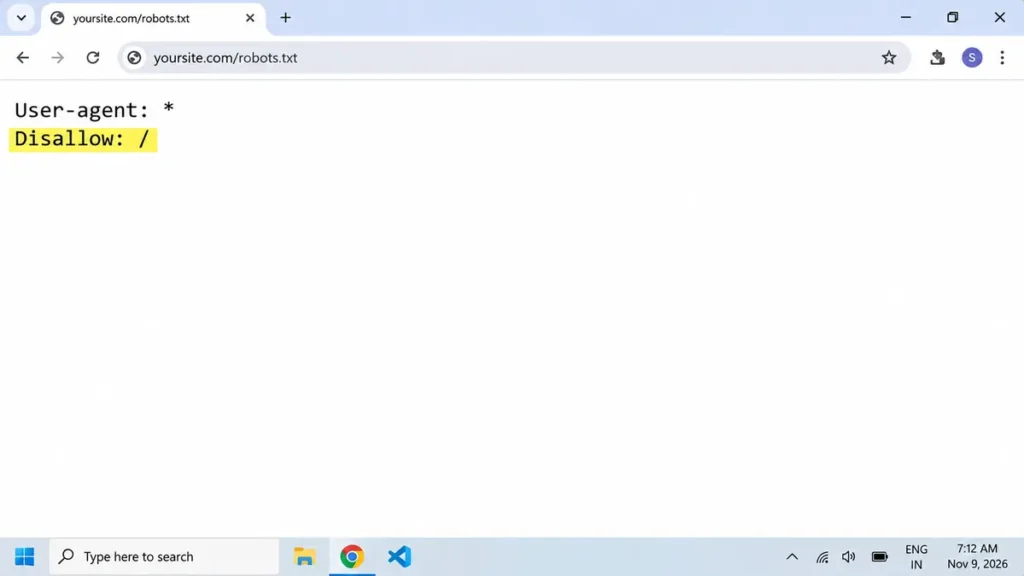
Then confirm in two places, because the setting shows up differently from site to site. Open yoursite.com/robots.txt and look for Disallow: /, which Kinsta explains means the whole site is blocked. Next, view the source of your homepage and search for “noindex”. One catch: mysites.guru points out that a physical robots.txt file in your site root takes priority over the one WordPress generates, so unticking the box won’t always clear the block.
Fix robots.txt first if both are present. A WordPress core ticket quotes Google’s own warning that a crawler blocked by robots.txt never sees the noindex tag, so the page can still appear in results when other pages link to it.
Next, look at what else robots.txt blocks. Googlebot fetches your theme’s CSS and JavaScript as separate files when it renders a page, so a rule like Disallow: /wp-content/ can leave it looking at a broken layout, which MacMyths describes. Old snippets that disallow /wp-content/plugins/ and /wp-content/themes/ still circulate, and WP Staging lists them as a cause of the “Googlebot cannot access CSS and JS files” warning.
To test one page, paste its URL into the URL Inspection tool in Search Console, run a live test, and open the rendered screenshot and the blocked resources list.
How to audit a WordPress website using Google Search Console
Search Console is the only tool that shows Google’s side of the story. Open Indexing, then Pages. Google’s own help page suggests scanning that report for spikes in errors or drops in indexed counts, and that’s a good first pass.

After that, read the reasons list instead of the totals. “Discovered, currently not indexed” means Google knows the URL but hasn’t crawled it yet. “Duplicate without user-selected canonical” means Google treats the page as a copy and you never named a preferred version. A related status shows Google overriding the canonical you did name, and Carrot’s guide walks through all these labels. Click any URL and choose Inspect URL to see which page Google picked instead.
If that last status shows up often, check for two plugins writing the same tags. Open the page source, search for “canonical” and “robots”, and count the results. You should find one of each. Two means two plugins are arguing.
How to find 404 errors using Google Search Console
In the same Pages report, open “Not found (404)”. It lists URLs Google tried and couldn’t load. When a page has moved, a 301 redirect to the new address is the fix, which the same Carrot guide also says. Changing a post’s slug moves the page too, so it needs a redirect as well.
Search Console gives you the dead URL. A crawler gives you the pages that still link to it, which is what you actually edit.
How to check broken links on a WordPress website
Screaming Frog is free for up to 500 URLs, and past that you need a licence. Enter your domain, hit Start, then open the Response Codes tab and filter for Client Error (4xx). For the version you can hand to an editor, use Bulk Export, then Response Codes, then Client Error (4xx) Inlinks, which lists each broken link next to its source page.

Sort by how many pages link to each dead URL. A 404 with forty internal links pointing at it is a fix for today. A 404 that nothing links to is usually Google remembering something old. Server errors in the 5xx range deserve a look in the same tab.
How to find duplicate pages on a WordPress website
Same crawl, different tabs. The top panel has tabs for Page Titles, H1 and Canonical, and repeated titles or canonicals pointing at other URLs are where duplicates show up.
WordPress also makes duplicates without being asked. Its core sitemap lists taxonomies and users alongside posts, which tells you tag and author archives exist as real URLs. On a small blog where each tag is used once, those archives are near copies of the post inside them. Set them to noindex in your SEO plugin, or delete the tags.
One more quick test: type your domain with and without www. One version should redirect to the other. If both load, Google can crawl two copies of your site.
How to check XML sitemap errors in WordPress
First question: which sitemap is live? WordPress has served one at /wp-sitemap.xml since version 5.5, but plugins such as Yoast replace it with their own. Open /wp-sitemap.xml and /sitemap_index.xml. If both load, find out which one you submitted to Google.

Then open the Sitemaps report in Search Console and compare submitted against indexed. A large gap can point to crawl trouble or to quality problems with those pages. A sitemap only states a preference. A URL that redirects or returns a 404 has no business in it.
How to find duplicate pages on a WordPress website
This check comes last on purpose. web.dev sets the thresholds: a page is good at 2.5 seconds or less for LCP, 200 ms or less for INP and 0.1 or less for CLS, measured at the 75th percentile of real visits. Search Console’s Core Web Vitals report groups your URLs by status. PageSpeed Insights then tells you why one URL is slow.
Keep the weight in perspective. A 2025 episode of Google’s Search Off the Record had Martin Splitt describing Core Web Vitals as a tiny factor in most cases. Slow pages still cost visitors, but they rarely explain a page that never made it into the index.
Two WordPress habits are worth checking in five minutes. Lazy-loading the main hero image delays LCP, because that image should load straight away. Images without width and height attributes cause layout shift on the same page.
Why crawl budget probably isn’t your problem
Plenty of guides tell small sites to manage crawl budget. Google’s guide targets sites with over a million unique pages that change weekly, sites with over 10,000 pages that change daily, and sites with a big share of URLs sitting at “Discovered, currently not indexed”. Some guides draw the line at 1,000 pages. Google’s numbers are far higher.
Google adds that if your pages get crawled the day you publish them, you can skip that guide. A 200 post blog hunting for crawl budget is solving the wrong problem. Thousands of URLs sitting at “Discovered” would change that.
How to fix WordPress technical SEO errors step by step
- Untick the discourage setting and remove any robots.txt blocks, then test the page with URL Inspection.
- Pick one version of your domain and one active sitemap.
- Add 301 redirects for moved or renamed URLs, then update internal links so they skip the redirect.
- Noindex or remove thin tag and author archives.
- Fix hero image loading and image dimensions, then recheck Core Web Vitals.
After each fix, use URL Inspection to request indexing for the affected page.
Sources
- Kinsta, Discourage search engines from indexing this site: https://kinsta.com/blog/discourage-search-engines-from-indexing-this-site/
- mysites.guru, Search engine visibility check: https://mysites.guru/tools/wordpress-configuration/search-engine-visibility/
- WordPress Core Trac ticket 43590: https://core.trac.wordpress.org/ticket/43590
- MacMyths, Googlebot cannot access CSS and JavaScript files: https://macmyths.com/how-to-fix-googlebot-cannot-access-css-and-javascript-files-in-wordpress/
- WP Staging, Googlebot cannot access CSS and JS files warning: https://wp-staging.com/googlebot-cannot-access-css-and-js-files-warning/
- Google Search Console Help, report summary: https://support.google.com/webmasters/answer/9133276
- Carrot, Search Console indexing report guide: https://help2.carrot.com/articles/search-console-indexing-report/
- Screaming Frog, quick start guide: https://www.screamingfrog.co.uk/quick-start-guide/
- Screaming Frog, how to find broken links: https://www.screamingfrog.co.uk/broken-link-checker
- Alejandro Rioja, how to use Screaming Frog: https://alejandrorioja.com/how-to-use-screaming-frog/
- Vincent Schmalbach, WordPress XML sitemaps: https://www.vincentschmalbach.com/how-to-map-and-customize-wordpress-xml-sitemaps/
- Sitemap UI plugin readme: https://fastly.jsdelivr.net/wp/plugins/sitemap-ui/trunk/readme.txt
- CyberOptik, crawl budget: https://www.cyberoptik.net/glossary/crawl-budget/
- web.dev, how Core Web Vitals thresholds were defined: https://web.dev/articles/defining-core-web-vitals-thresholds
- PPC Land, Core Web Vitals: https://ppc.land/core-web-vitals/
- specification.website, Core Web Vitals: https://specification.website/spec/performance/core-web-vitals/
- Google Search Central, crawl budget: https://developers.google.com/crawling/docs/crawl-budget