
How to Fix CLS Issue (Cumulative Layout Shift) — Complete 2026 Guide
Have you ever clicked a button on a website — and just before your finger landed, something shifted and you accidentally tapped the wrong thing? That frustrating experience is caused by a CLS issue, and it silently damages both user experience and your Google rankings.
In this complete guide, you will learn:
- What cumulative layout shift actually means and why it matters
- What causes a CLS issue on your website
- Exactly how to fix CLS issue step by step — on WordPress, Shopify, and any CMS
- How to measure your CLS score using free tools
- Advanced techniques most guides never mention
As the founder of TechMarg — a Technical SEO agency based in Patna — I have helped multiple clients bring their CLS score from above 0.3 down to under 0.05 through systematic fixes. This guide is based on that hands-on experience, not just theory.
What Is Cumulative Layout Shift (CLS)?
🎯 Direct Answer — What Is CLS?
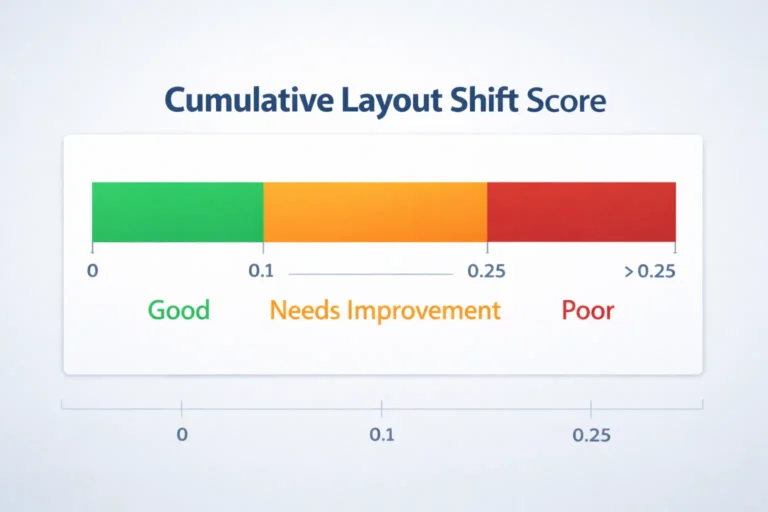
Cumulative Layout Shift (CLS) is a Core Web Vitals metric that measures visual stability. It calculates how much visible page content moves unexpectedly while a page loads. A CLS score of 0.1 or below is considered good by Google; above 0.25 is considered poor and can hurt your search rankings.
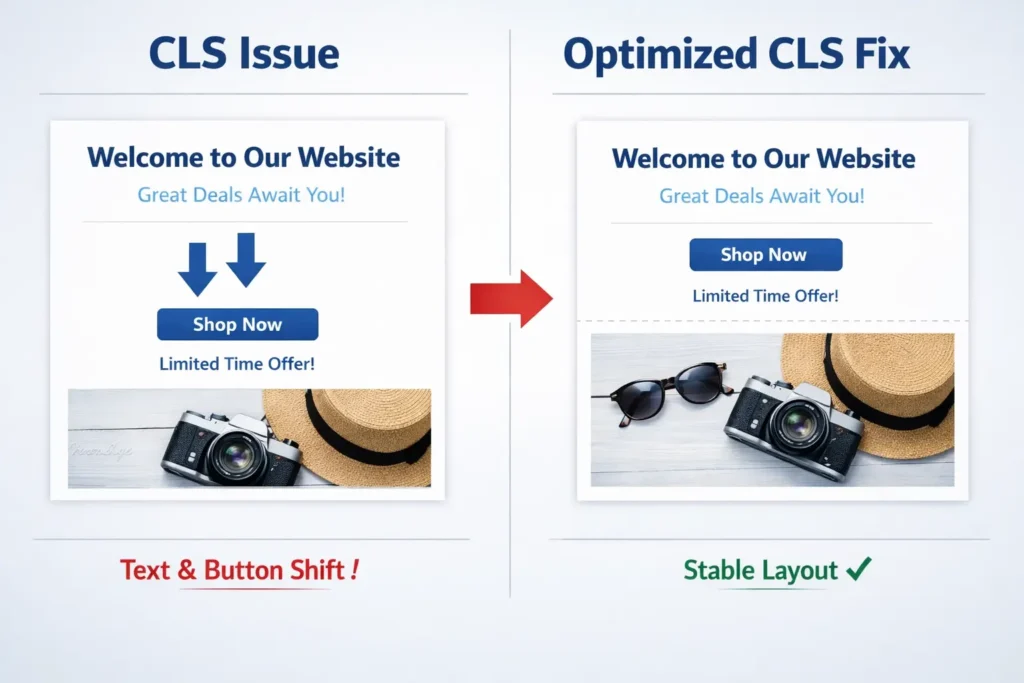
In plain terms: if you are reading a blog post and the text suddenly jumps down because an image loaded late — that is a layout shift. If a button moves just as you are about to click it — that is a layout shift.
CLS is part of Google’s three Core Web Vitals, alongside Largest Contentful Paint (LCP) and Interaction to Next Paint (INP). All three directly affect how Google ranks your website.
To understand how CLS fits into Google’s ranking system, explore our complete guide to Core Web Vitals in 2026.
CLS Score Scale — What Do the Numbers Mean?
| CLS Score | Rating | What It Means |
|---|---|---|
| 0 – 0.1 | ✓ Good | Visual layout is stable. No action needed. |
| 0.1 – 0.25 | ⚠ Needs Improvement | Some shifts happening. Fix soon. |
| Above 0.25 | ✕ Poor | Serious layout instability. Urgent fix required. |
Why Fixing CLS Issues Matters for SEO
🎯 CLS and SEO — Quick Answer
CLS directly affects Google search rankings because it is one of the Core Web Vitals signals used in Google’s Page Experience ranking system. A poor CLS score increases bounce rate and reduces conversion rate, both of which negatively impact how Google evaluates your page quality.
Google confirmed in 2021 that Core Web Vitals — including CLS — are official ranking signals. This means a website with a poor CLS score can be outranked by a competitor with similar content but better visual stability.
Beyond rankings, a high CLS score causes:
- Users accidentally clicking wrong elements (misclicks)
- Increased frustration and bounce rate
- Lower time-on-site and engagement
- Reduced trust in your brand
- Lower conversion rates on product and service pages
💡 Real-World Impact
A CLS score above 0.1 on mobile can cause users to misclick ads, purchase buttons, or navigation links — directly reducing your revenue and increasing your ad spend waste.
Common Causes of CLS Issues
Before you can fix a CLS issue, you need to understand what is causing it. Here are the most common culprits:
1. Images Without Defined Dimensions
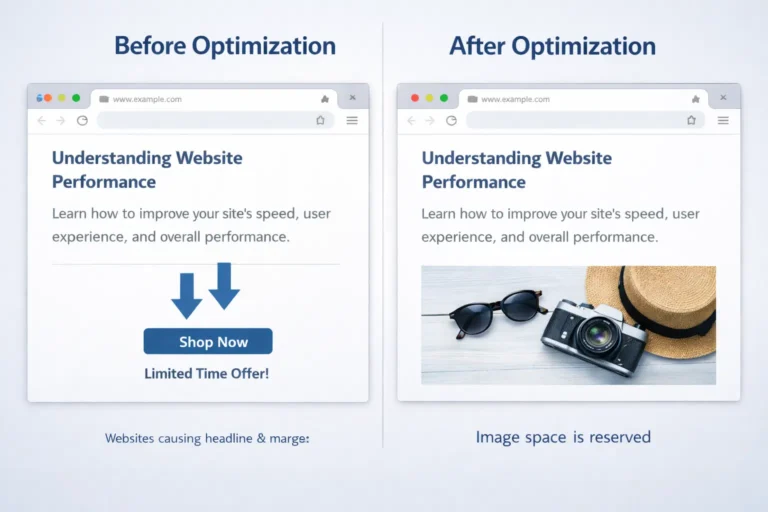
When an image does not have explicit width and height attributes, the browser does not know how much space to reserve for it. So when the image finally loads, it pushes all the content below it downward — causing a layout shift.
Fix: Always add width and height to every <img> tag. Example: <img src=”logo.png” width=”300″ height=”200″ alt=”TechMarg logo”>
2. Advertisements and Dynamic Embeds
Ad networks load ads asynchronously — meaning the ad appears after the page has already rendered. If no space is reserved for the ad, it pushes content down when it loads. This is one of the biggest real-world causes of poor CLS scores.
3. Web Fonts Causing a Flash
When a browser loads a custom Google Font or Adobe font, it first shows text in a system font, then swaps to the custom font once it downloads. If the two fonts have different letter spacing or character widths, the text block changes size — causing a shift.
4. Dynamically Injected Content
Popups, cookie banners, sticky notification bars, and lazy-loaded content that appears above existing content — all of these push other content down and directly cause cumulative layout shifts.
5. Animations Using the Wrong CSS Properties
Animating properties like top, left, margin, or height forces the browser to recalculate the layout of surrounding elements. This creates CLS. The correct approach is to use CSS transform instead.
| ✕ Causes CLS — Avoid | ✓ No CLS — Use Instead |
|---|---|
top, left, right, bottom |
transform: translate() |
width, height (animated) |
transform: scale() |
margin, padding (animated) |
transform: translate() |
font-size (animated) |
transform: scale() |
What Is a Good CLS Score?
According to Google:
- Good CLS score: 0.1 or less
- Needs improvement: 0.1 to 0.25
- Poor: More than 0.25
If you see a CLS issue more than 0.1 desktop or CLS issue more than 0.1 mobile, optimization should start immediately.
- A CLS issue more than 0.25 desktop or mobile requires urgent fixes.
Common Causes of Content Layout Shift
Understanding the cause helps reduce cumulative layout shift effectively.
1. Images Without Size Dimensions
- If width and height are not defined, the browser does not reserve space. This leads to cumulative shift layout problems.
2. Ads and Embeds
- Ads loading dynamically are a major reason for large layout shifts.
3. Fonts Causing CSS Layout Shift
- Web fonts that swap after loading can create css layout shift.
4. Dynamic Content Injection
- Popups, banners, or lazy loading content inserted above existing content causes layout shift score issues.
Cumulative Layout Shift Example
Example scenario:
- A blog page loads.
- The headline appears.
- An image loads without defined dimensions.
- The paragraph below shifts down suddenly.
This is a cumulative layout shift example that affects user experience and website performance.
How to Measure Your CLS Score
🎯 How to Check CLS — Quick Answer
You can measure your CLS score using Google PageSpeed Insights (free), Lighthouse in Chrome DevTools, or Google Search Console’s Core Web Vitals report. Always check both mobile and desktop scores separately, as they often differ significantly.
| Tool | What It Shows | Best Used For |
|---|---|---|
| Google PageSpeed Insights | Real user CLS data (field data) | Most accurate — what Google uses for rankings |
| Chrome DevTools (Lighthouse) | Lab test CLS from page load | Debugging specific elements causing shifts |
| Google Search Console | 28-day rolling average from real users | Tracking improvement over time |
| Web Vitals Chrome Extension | Real-time score while browsing | Catching CLS from scrolling and interactions |
💡 Important: Lab vs Field Data
Lighthouse (lab data) may show a CLS of 0.05 while Google Search Console (field data) shows 0.30. Both are correct — they measure different things. Lighthouse only sees the initial page load. Field data captures shifts from ads, lazy loading, scrolling, and user interactions. Google uses FIELD DATA for rankings. Always prioritize fixing what Search Console shows.
Lab Data vs Field Data — Why Your CLS Looks Different
🎯 Lab vs Field Data — Quick Answer
Lab data (Lighthouse) runs a single controlled test of your page load with no user interaction. Field data (Google Search Console, PageSpeed Insights) collects real CLS scores from actual Chrome users over 28 days, including shifts from scrolling, lazy-loaded ads, and cookie banners. Google uses field data for rankings.
This is one of the most confusing aspects of CLS. You run Lighthouse and see 0.05 — excellent. Then you check Search Console and see 0.35 — poor. Both numbers are correct because they measure fundamentally different things.
| Data Type | Source | What It Captures | Used for Rankings? |
|---|---|---|---|
| Lab Data | Lighthouse / DevTools | Page load only — no scrolling, no interaction | ✕ No |
| Field Data | Chrome User Experience (CrUX) | Full page lifetime — ads, scroll, banners, clicks | ✓ Yes |
What Is Lab Data?
Lab data is collected in a controlled environment — a single test run on a simulated device and network. Tools like Lighthouse and PageSpeed Insights (lab mode) use this.
Key limitation: Lighthouse runs a headless browser that loads your page once, with no scrolling, no mouse movement, and no user interaction. It only sees CLS from the initial page load.
What Is Field Data?
Field data (also called real-user monitoring or RUM) is collected from actual Chrome users visiting your site over the past 28 days. This is the Chrome User Experience Report (CrUX).
Key advantage: Field data captures CLS from the full page lifetime — including shifts caused by scrolling, lazy-loaded ads appearing, cookie banners popping up, and any user interaction.
Common Causes of CLS That Lighthouse Misses
|
CLS Cause
|
Lighthouse Catches It?
|
Field Data Catches It?
|
|---|---|---|
|
Images without dimensions
|
Yes
|
Yes
|
|
Ads loading after page load
|
Sometimes
|
Always
|
|
Cookie consent banners
|
Rarely
|
Always
|
|
Lazy-loaded content below fold
|
No
|
Yes
|
|
Font swap during page load
|
Yes
|
Yes
|
|
Infinite scroll new content
|
No
|
Yes
|
|
Sticky header on scroll
|
No
|
Yes
|
How to Fix CLS Issue — Step-by-Step Guide
Now the most important part: exactly how to fix CLS issue on your website. Follow these steps in order.
1. Images Without Defined Dimensions
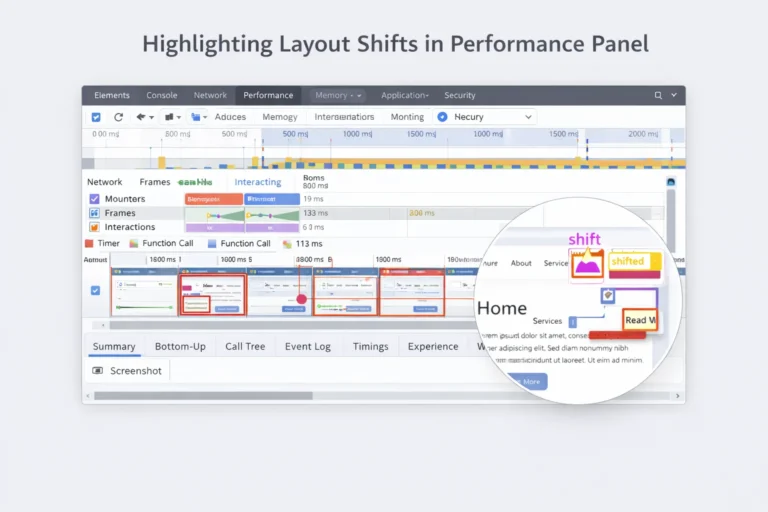
- Open your website in Google Chrome
- Right-click and select Inspect to open DevTools
- Go to the Performance tab
- Click Record, then reload the page
- Stop recording and look for Layout Shift events in the timeline
Click any Layout Shift event — Chrome will highlight the exact element that moved
Step 2 — Fix Images (Most Common CLS Cause)
For every image on your page, add explicit width and height attributes:
- <img src=”image.jpg” width=”800″ height=”450″ alt=”descriptive alt text”>
For responsive images, use the CSS aspect-ratio property alongside width and height:
- img { aspect-ratio: 16/9; width: 100%; height: auto; }
Step 3 — Reserve Space for Ads and Embeds
Never let an ad appear without pre-allocated space. Set a minimum height container before the ad loads:
- .ad-container { min-height: 250px; width: 100%; }
|
Element
|
Why it Causes CLS
|
|---|---|
|
Images without size attributes
|
Browser doesn't know how much space to reserve
|
|
Ads and banners
|
Ads load later and push content down
|
|
Web fonts
|
Text changes size when custom font loads
|
|
Embeds or iframes
|
Videos or widgets resize after loading
|
⚠️ Never insert an ad container above existing content without a pre-reserved height. This is the most common cause of CLS above 0.25.
Step 4 — Fix Font Swap CLS
Simply adding font-display: swap to your CSS is not enough. This can actually make CLS worse if your fallback font has different dimensions than your custom font.
The complete font fix involves matching fallback font metrics to your custom font:
- @font-face { font-family: ‘YourFallback’; src: local(‘Arial’); ascent-override: 90%; descent-override: 22%; size-adjust: 105%; }
💡 WordPress Font Tip
If you are using Google Fonts in WordPress, use font-display: optional for body text. This prevents any font swap at the cost of occasionally showing the system font. Use font-display: swap only for headings where brand consistency is critical.
Step 5 — Fix Dynamic Content Injection
If popups, banners, or notification bars appear above existing content, they will always cause a CLS issue. Apply these rules:
- Place cookie banners and notification bars at the bottom of the page, not the top
- If a banner must appear at the top, pre-reserve its space in the HTML so the layout does not change when it loads
- Use transform: translateY() to animate banners in — not margin-top changes
How to Fix CLS Issue in WordPress
🎯 WordPress CLS Fix — Quick Answer
To fix CLS in WordPress: define image dimensions in your theme and media settings, use a performance plugin to preload fonts, avoid placing ads or dynamic banners above existing content, and disable or optimize page builder elements that inject content without reserved space.
WordPress is the most common platform where CLS issues appear because of the ecosystem of themes, plugins, and page builders. Here are the most effective fixes:
WordPress-Specific CLS Fixes
- Set image dimensions in your theme: Edit your functions.php to ensure all images output width and height attributes
- Use plugins like WP Rocket or NitroPack which include CLS optimization features
- In Elementor: Avoid using ‘entrance animations’ that use opacity+top transitions — use CSS transform instead
- Disable lazy loading for above-the-fold images: Add loading=’eager’ to hero images
- Remove or replace sliders: Most slider plugins are major CLS contributors due to dynamic resizing
- Test your theme’s advertisement placements and ensure min-height is set on all ad containers
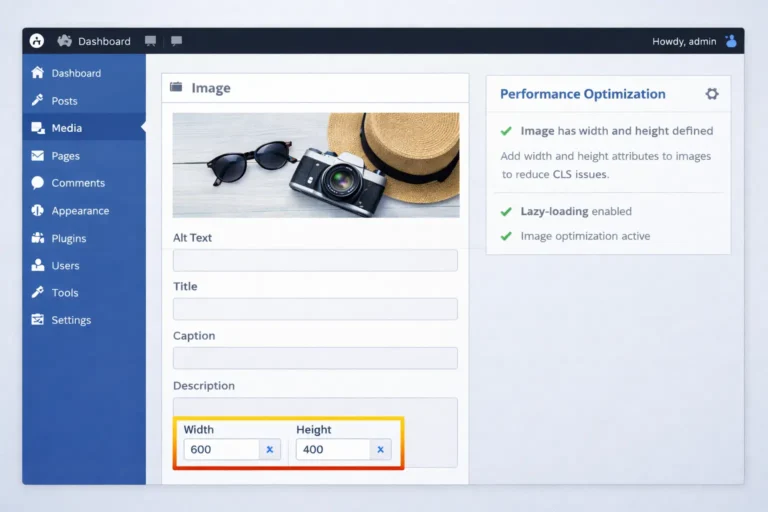
⚠️ Most WordPress CLS problems come from three sources: image galleries without dimensions, ad plugins without reserved space, and popup/notification bar plugins. Check these first. |
How to Improve CLS Score for Shopify
Shopify store owners frequently face cumulative layout shift problems due to theme apps and announcement bars. Here are targeted fixes:
- Optimize theme images: Add explicit width and height to all product images in your theme’s Liquid templates
- Reserve space for announcement bars: Set a fixed height on announcement bar containers so they do not push content down
- Audit installed apps: Many Shopify apps inject banners or widgets without reserved space — remove apps you do not actively use
- Limit app JavaScript: App scripts that load after the page renders are a leading cause of CLS on Shopify
- Test each app individually: Disable apps one by one in PageSpeed Insights to identify which app is causing the shift
Advanced Font CLS Fix — Beyond font-display: swap
Most guides stop at font-display: swap. But swap can actually make font CLS worse if not paired with a matching fallback font. Here is the complete solution.
Why font-display: swap Alone Is Not Enough
When you use font-display: swap, the browser first renders text in your fallback font (like Arial or Georgia), then swaps to your custom font when it loads. This swap causes a layout shift if the two fonts have different letter-spacing, line heights, or character widths.
The fix is to adjust your fallback font metrics to match your custom font as closely as possible. This technique is called font metric override.
The Complete Font CLS Fix
Here is a production-ready CSS snippet. This example uses a custom font called YourFont with Arial as the fallback:
Quick Font Fix for WordPress
If you are using Google Fonts in WordPress, add this to your theme’s functions.php or via a plugin to preload the font and reduce swap time:
Use font-display: optional for body text (prevents any font swap at the cost of sometimes showing system font). Use font-display: swap for headings where brand consistency matters more than zero-shift.
Advanced CSS Techniques to Eliminate CLS
Beyond setting image dimensions, there are several modern CSS properties that dramatically reduce layout shifts. These are covered in detail by Google’s official documentation but are missing from most beginner guides.
The aspect-ratio Property — Better Than Width and Height
While adding width and height attributes to images is the minimum requirement, using CSS aspect-ratio gives you more flexible, responsive control:
Contain-intrinsic-size — For Dynamic Content Placeholders
When you use content-visibility: auto to lazy-render off-screen content, the browser collapses those elements to zero height until they are rendered — causing massive layout shifts as the user scrolls. The fix is contain-intrinsic-size:
Use transform for Animations — Never top, left, or margin
Many CLS issues come from animations that use CSS properties which trigger layout recalculation. These are the properties to AVOID in animations:
|
Causes CLS (Avoid)
|
No CLS (Use Instead)
|
Why?
|
|---|---|---|
|
top, left, right, bottom
|
transform: translate()
|
Transform does not affect layout flow
|
|
width, height
|
transform: scale()
|
Scale does not shift other elements
|
|
margin, padding
|
transform: translate()
|
Margin changes affect surrounding elements
|
|
font-size (animated)
|
transform: scale()
|
Font size change reflows text
|
Handling Dynamic Ad Slots Without CLS
Ads are one of the biggest sources of real-world CLS. The key principle: always pre-allocate the space an ad will occupy, even before the ad loads.
If your ad unit can serve multiple sizes (e.g., 250px or 600px), set the min-height to your largest possible ad size. An empty placeholder is always better than a sudden shift.
How to Improve CLS Step-by-Step
If you are searching cumulative layout shift how to improve, follow this structured approach:
- Check CLS score in PageSpeed Insights
- Identify layout shift elements
- Fix image dimensions
- Reserve space for ads
- Optimize fonts
- Remove unstable animations
- Re-test performance
Repeat until your cumulative layout shift score is below 0.1.
How to Fix CLS in SuiteCommerce (NetSuite) — The Complete Guide
SuiteCommerce is NetSuite’s e-commerce platform and it has specific CLS challenges that are different from WordPress or Shopify. This section covers the most common SuiteCommerce CLS issues and their fixes.
Why SuiteCommerce Has CLS Problems
SuiteCommerce pages often score poorly on CLS because of how the platform loads content:
- Product images load via JavaScript after the initial DOM is rendered
- Facet/filter panels re-render dynamically without reserved space
- Promotional banners are injected via SuiteScript after page load
- Third-party extensions (payment widgets, review apps) resize without pre-allocated dimensions
Fix 1 — Reserve Space for Product Images
The most common SuiteCommerce CLS issue is product images loading without reserved dimensions. In your SuiteCommerce theme, find the product image template and add explicit width/height attributes:
Fix 2 — Stabilize the Facet Panel
The left-side facet/filter panel in SuiteCommerce category pages often causes large layout shifts when filters load. Set a minimum height on the facet container:
Fix 3 — Promotional Banner Injection
If your SuiteCommerce site uses SuiteScript to inject promotional banners above the product listing, always pre-allocate space in the HTML template so the space exists even before the banner loads:
SuiteCommerce CLS Checklist
|
Issue
|
Fix
|
Priority
|
|---|---|---|
|
Product images no dimensions
|
Add width, height, aspect-ratio
|
High
|
|
Facet panel layout shift
|
Set min-height on container
|
High
|
|
Promo banner injection above fold
|
Pre-reserve space with min-height
|
Critical
|
|
Cart sidebar animation
|
Use transform instead of top/left
|
Medium
|
|
Review widget resize
|
Set fixed height container for widget
|
Medium
|
|
Currency switcher reflow
|
Set fixed width on currency element
|
Low
|
Core Web Vitals CLS Issue and Website Performance
Many website owners see:
- CLS website performance warning
- Google CLS issue in Search Console
- Core Web Vitals CLS issue report
These reports show real-world data collected from Chrome users.
Fixing cumulative layout shift improves:
- Page stability
- Engagement time
- User trust
- Conversion rate
Complete CLS Fix Checklist
Use this checklist to systematically reduce cumulative layout shift across your entire website:
| # | Task | Priority |
|---|---|---|
| 1 | Set explicit width and height on all images | ● Critical |
| 2 | Add CSS aspect-ratio to responsive image containers | ● Critical |
| 3 | Pre-allocate min-height for all ad containers | ● Critical |
| 4 | Place cookie banners and popups below fold | ● High |
| 5 | Fix font swap using fallback font metric overrides | ● High |
| 6 | Replace top/left/margin animations with transform | ● High |
| 7 | Add loading='eager' to above-fold hero images | ● High |
| 8 | Add contain-intrinsic-size for lazy-rendered sections | ● Medium |
| 9 | Audit and remove CLS-causing plugins or apps | ● Medium |
| 10 | Monitor Search Console Core Web Vitals weekly | ● Medium |
CLS Issue More Than 0.25 – What to Do?
If your CLS issue more than 0.25:
- Audit entire template
- Remove unstable plugins
- Check third-party scripts
- Optimize header sections
- Remove intrusive popups
A high cumulative layout shift fix requires structural improvements.
How to Solve CLS Issue Permanently
To permanently solve cls issue:
- Build stable layouts from design stage
- Avoid unpredictable content injections
- Test before publishing
- Monitor regularly
CLS should not be treated as a one-time fix. It requires continuous monitoring.
Cumulative Layout Shift and Responsive Design
Responsive layouts can create cls responsive images problems if:
- Images scale without defined ratio
- Ads resize based on screen width
- Content blocks collapse unpredictably
Use consistent containers and defined aspect ratios.
Final Thoughts
Cumulative layout shift is one of those website problems that feels invisible to developers but is immediately felt by users. Every unexpected jump, every misclick, every shifted button erodes trust and conversions — and quietly damages your Google rankings.
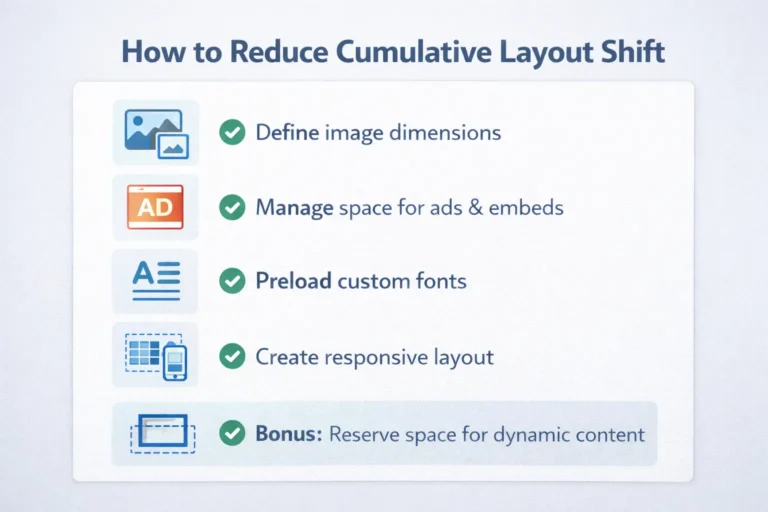
The good news: most CLS issues have clear, fixable causes. Define your image dimensions. Reserve space for ads. Fix your font loading. Move dynamic content below the fold. Test on mobile.
Fix CLS once. Monitor continuously. And understand how it connects with your other Core Web Vitals — LCP and INP — to build a page experience that Google and your users will reward.
For more technical SEO insights, explore TechMarg’s complete guide to Core Web Vitals optimization.
Understanding the Session Window in CLS Calculation
One reason your CLS score looks different across tools is the session window model that Google uses to calculate CLS.
How Session Windows Work
- A session window groups layout shifts that happen within 1 second of each other
- Each session window has a maximum duration of 5 seconds
- Your final CLS score equals the score of the worst (highest) session window — not the total of all shifts
This model was introduced by Google in 2021. Before that, all shifts across the entire page lifetime were added together, which unfairly penalized long articles, infinite scroll pages, and single-page apps.
2.2 Session Window Example
Let us say your page has these layout shifts over time:
|
Time
|
Shift Score
|
Gap from Previous
|
Session Window
|
|---|---|---|---|
|
0.5s after load
|
0.05
|
—
|
Window A starts
|
|
1.2s after load
|
0.06
|
0.7s (under 1s)
|
Window A continues
|
|
3.0s after load
|
0.04
|
1.8s (over 1s)
|
Window B starts
|
|
8.0s (user scrolls)
|
0.03
|
5s gap
|
Window C
|
Old calculation: 0.05 + 0.06 + 0.04 + 0.03 = 0.18 (POOR — fails threshold)
New calculation: Worst window = Window A = 0.05 + 0.06 = 0.11 (Needs improvement — much better!)
2.3 Why Lighthouse and Search Console Show Different Scores
|
Tool
|
What It Measures
|
When to Trust It
|
|---|---|---|
|
Lighthouse (lab data)
|
Only the initial page load — does not scroll or interact
|
Good for finding specific causes. Does not reflect real user behavior.
|
|
PageSpeed Insights (field)
|
Real user CLS from Chrome users, full page lifetime
|
Most accurate for SEO. This is what Google uses for rankings.
|
|
Google Search Console
|
28-day rolling average from real Chrome users
|
Best for tracking improvement over time. Slow to update.
|
|
Web Vitals Chrome Extension
|
Real-time score as you browse, including scrolling
|
Best for debugging CLS from user interactions like scrolling and clicking.
|
FAQ:
Cumulative Layout Shift (CLS) is a Core Web Vitals metric that measures visual stability. It calculates how much content moves unexpectedly while a page is loading. A high CLS score means elements like images, buttons, or text shift position, creating a poor user experience.
A good CLS score is 0.1 or less. A score between 0.1 and 0.25 needs improvement, while a score above 0.25 is considered poor.
You can fix cumulative layout shift by making sure your images have proper width and height attributes so the browser reserves space before they load. It is also important to reserve space for ads, embeds, and dynamic content to prevent unexpected movement. Preloading custom fonts and avoiding content insertion above existing elements can further reduce layout shifts. When these improvements are applied correctly, your CLS score becomes more stable and your website performance improves.
Yes, CLS affects SEO because it is part of Google’s Core Web Vitals ranking signals. If your page elements move unexpectedly while loading, users may click the wrong buttons or feel frustrated, which increases bounce rate. Google considers user experience an important factor, so a poor CLS score can negatively impact search rankings. Improving CLS helps create a stable browsing experience and supports better visibility in search results.
You can check your CLS score using tools like Google PageSpeed Insights, Lighthouse in Chrome DevTools, or the Core Web Vitals report inside Google Search Console. These tools analyze your website and show whether your cumulative layout shift score is good, needs improvement, or poor. They also highlight the elements causing layout shifts so you can fix them easily.
When Google Search Console shows a 'CLS issue more than 0.25', it means real Chrome users visiting your page experienced layout shifts with a combined score above 0.25 — which Google classifies as 'poor'. This threshold is the point where layout instability becomes clearly frustrating to users. Pages above 0.25 are flagged for improvement and may see a negative impact on their Core Web Vitals ranking signal.
A CLS score between 0.1 and 0.25 means your page 'needs improvement' according to Google's Core Web Vitals thresholds. It is not as severe as a score above 0.25, but it still signals that users are experiencing noticeable layout instability. Google recommends getting your CLS below 0.1 to pass the 'good' threshold and avoid any negative ranking impact from page experience signals.
CLS scores differ between desktop and mobile because layouts, viewport sizes, font sizes, and ad placements are different. An image that has no dimensions might shift 150px on desktop but only 50px on mobile — resulting in very different CLS scores. Additionally, ads and widgets may serve different sizes on different device types. Always check your Search Console CLS report separately for desktop and mobile and apply fixes for each device type independently.
Fixing CLS improves your Core Web Vitals score, which is one of Google's page experience signals. While Google confirms that Core Web Vitals are a ranking factor, they are just one of many signals — content quality, backlinks, relevance, and other factors have a larger weight in most cases. However, for highly competitive keywords where two pages have similar content quality, better Core Web Vitals can be the tiebreaker. More importantly, fixing CLS directly improves user experience, which tends to reduce bounce rate and improve engagement — both of which indirectly support better rankings.
Google Search Console's Core Web Vitals report uses a 28-day rolling average of real Chrome user data. This means improvements you make today will take approximately 28 days to fully reflect in your Search Console report. However, you can verify your fixes immediately using PageSpeed Insights (field data tab), Chrome DevTools Performance panel, or the Web Vitals Chrome Extension. Do not wait 28 days to verify — check your fixes with these tools immediately, then monitor Search Console over the following month.
✍️ About the Author
Yadav Sintu
Founder, TechMarg — Technical SEO & Digital Marketing Agency, Patna, Bihar
Yadav Sintu specializes in Technical SEO, Core Web Vitals optimization, and structured data implementation. TechMarg has helped multiple businesses improve their Google rankings through CWV fixes, schema markup, and page speed optimization. Sintu’s content has been cited in Google AI Overviews — a testament to its depth and accuracy.