
In the modern landscape of Search Engine Optimization, Google’s core web vitals have become the definitive benchmark for measuring user experience. As of March 2024, Interaction to Next Paint (INP) officially replaced First Input Delay (FID) as a stable Core Web Vital metric. This shift highlights a significant evolution in how Google assesses page responsiveness—moving from measuring only the first impression to evaluating the speed of every interaction throughout a user’s entire visit.
For website owners aiming to rank on the first page, achieving a “Good” status in your web vitals report is no longer optional; it is a technical necessity to ensure your site remains competitive and user-friendly.
What is Interaction to Next Paint (INP)?
INP is a performance metric that assesses a page’s overall responsiveness by observing the latency of all click, tap, and keyboard interactions that occur throughout the lifespan of a user’s visit. Unlike previous metrics, the final INP value represents the longest interaction observed (ignoring outliers), ensuring that the data reflects a consistently smooth experience.
How is INP Different from First Input Delay (FID)?
How Google Calculates Interaction to Next Paint (INP)
Interaction to Next Paint (INP) measures how quickly a webpage responds when a user interacts with it. Instead of measuring only the first interaction like the older FID metric, INP analyzes all interactions that happen during a user’s visit and reports the slowest one.
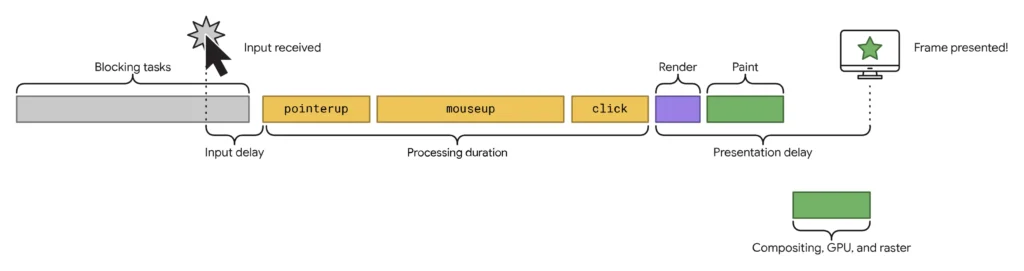
Google calculates the INP score based on three stages.
1. Input Delay
Input delay is the time between when a user performs an action and when the browser starts processing it.
For example, if a user clicks a button but the browser is busy running heavy JavaScript, the interaction must wait. This waiting time is called input delay.
2. Processing Time
Processing time is the time required for JavaScript to handle the interaction.
For example, when a user clicks a menu button, JavaScript may run to open a dropdown, load data, or trigger animations.
If the code is heavy or poorly optimized, the browser will take longer to process the action.
3. Presentation Delay
After processing the interaction, the browser must update the visual content on the screen.
This includes layout calculations and painting the new content. The time taken for this visual update is called presentation delay.
The total time of input delay + processing time + presentation delay forms the final INP score.
A lower INP means the website responds faster to user interactions.
Real Examples of User Interactions That Affect INP
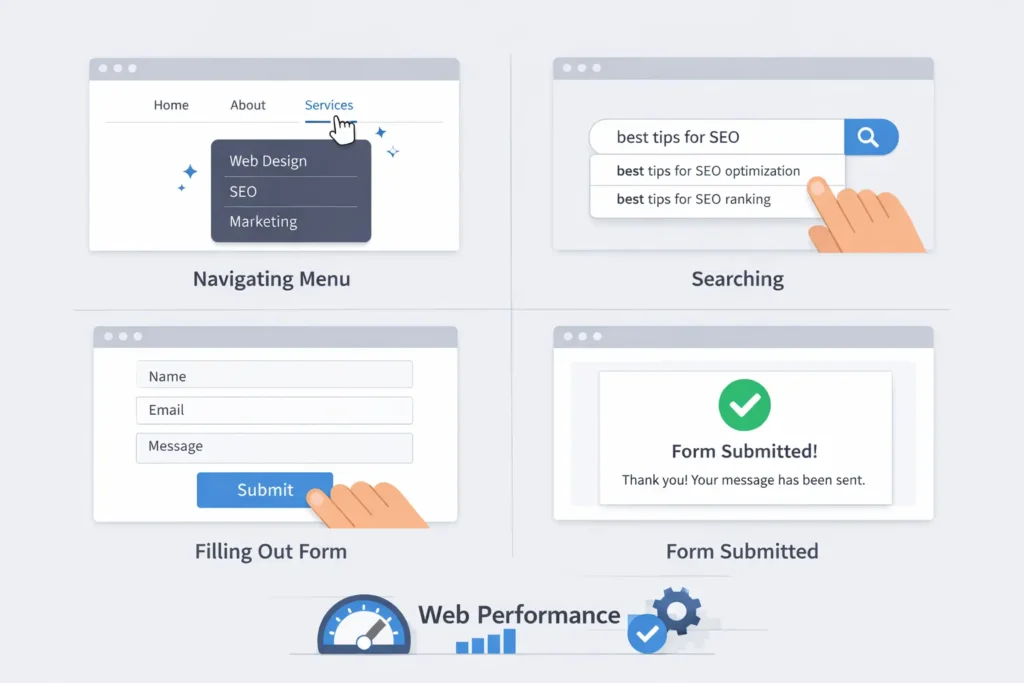
INP is triggered whenever a user interacts with elements on a webpage. These interactions are very common on modern websites.
Examples include:
• Clicking navigation menus
• Opening dropdown lists
• Expanding FAQ sections
• Submitting contact forms
• Typing in a search bar
• Clicking buttons that open popups or modals
• Adding products to a shopping cart
If these actions take too long to respond visually, users may feel the website is slow or unresponsive. That is why improving INP is important for both user experience and SEO performance.
What is a Good Core Web Vitals Score for INP?
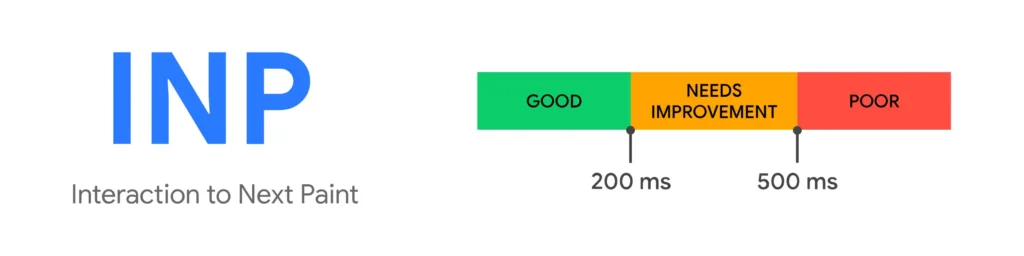
To ensure you are delivering a high-quality experience, Google defines specific thresholds for the core web vitals test. These scores are measured at the 75th percentile of page loads:
Key Components of User Interaction Latency
When you perform a core web vitals check, it is important to understand that an interaction consists of three distinct phases that contribute to the total latency:
- Input Delay: The time between the user initiating an action and the event callbacks starting. This is often caused by “long tasks” on the main thread blocking the browser.
- Processing Duration: The time required for the JavaScript event handler callbacks to execute.
- Presentation Delay: The time after callbacks finish until the browser successfully paints the next frame on the screen.
Common Causes of Poor INP Scores
Many websites experience poor INP scores due to performance bottlenecks in their frontend code. Understanding these issues helps developers fix them effectively.
Heavy JavaScript Execution
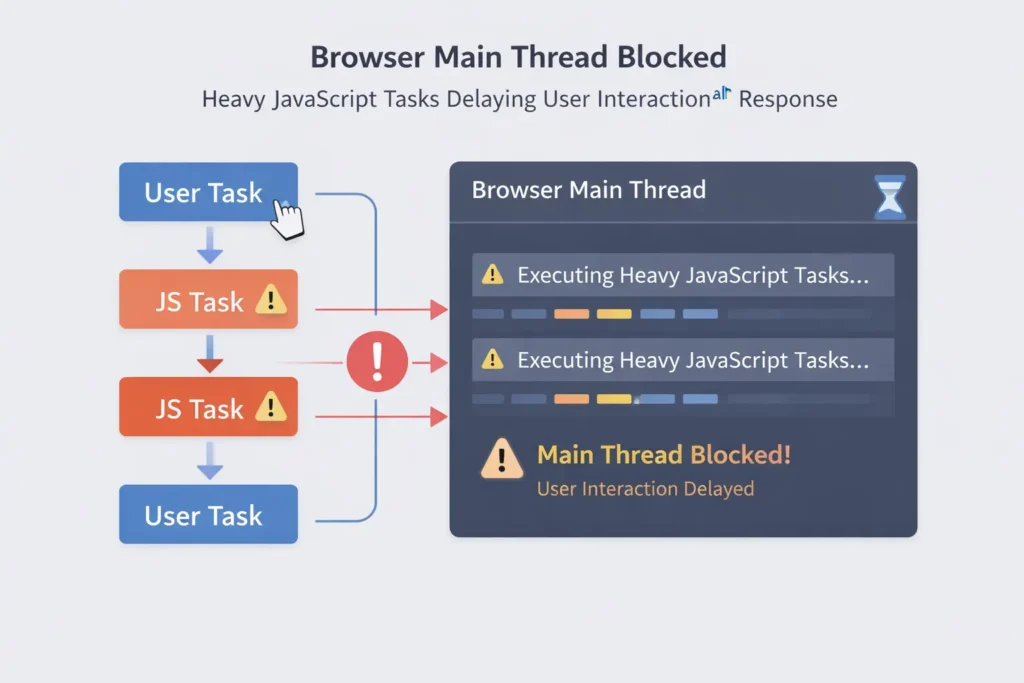
Large JavaScript files can block the browser’s main thread. When the main thread is busy executing scripts, the browser cannot respond quickly to user interactions.
Long Tasks Blocking the Main Thread
A long task occurs when JavaScript runs continuously for more than 50 milliseconds. During this time, the browser cannot process new interactions, which increases INP.
Too Many Third-Party Scripts
Third-party scripts such as ads, analytics tools, chat widgets, and tracking pixels often slow down interaction processing.
Reducing unnecessary third-party scripts can significantly improve responsiveness.
Large and Complex DOM Structure
A very large DOM makes it harder for the browser to update page layouts quickly. This increases rendering time and affects INP.
Slow Event Handlers
Poorly optimized event listeners can delay interaction processing. Heavy click or input handlers often cause noticeable delays in user responses.
Technical Strategies for INP Optimization
To improve your score and maintain high rankings, you must optimize how your site handles data and scripts. Here are the most effective technical methods:
1. Javascript Minimization and Script Management
Heavy JavaScript execution is a primary cause of high INP.
- Javascript minimization (minification) reduces file sizes, which helps scripts load and parse faster.
- Break Up Long Tasks: If event handlers are doing too much work, they block the main thread. Break complex scripts into smaller, asynchronous tasks to allow the browser to paint the next frame sooner.
- Yield to the Main Thread: Use modern APIs like scheduler.yield() to pause long-running scripts and let the browser handle pending user inputs.
2. Reduce Input and Presentation Delays
- Optimize Script Loading: Use defer or async for non-critical third-party scripts so they don’t block the main thread during crucial user interactions.
- Simplify DOM Structure: A massive DOM tree increases the time the browser needs to recalculate styles and layouts, leading to presentation lag.
- Avoid Layout Thrashing: Ensure your code does not repeatedly read from and write to the DOM in a way that forces the browser to recalculate the layout multiple times unnecessarily.
Advanced Techniques to Improve INP Scores
Improving INP requires optimizing how JavaScript runs and reducing the workload on the browser’s main thread.
Break Long JavaScript Tasks
Large tasks should be divided into smaller asynchronous tasks. This allows the browser to process user interactions faster.
Defer Non-Critical JavaScript
Scripts that are not required immediately should be loaded later using the defer or async attribute.
Reduce Third-Party Scripts
Audit all third-party tools and remove scripts that are not essential for your website.
Optimize Event Handlers
Keep event handlers lightweight and avoid running heavy logic during click or input events.
Reduce DOM Size
Simplifying the DOM structure helps the browser perform layout calculations faster and improves responsiveness.
Tools to Measure INP Performance
Before fixing INP issues, it is important to measure your current website performance. Several tools help analyze interaction delays.
PageSpeed Insights
This tool shows real user data and reports whether your INP score is good, needs improvement, or poor. It also provides suggestions for optimization.
Chrome DevTools
Chrome DevTools allows developers to record performance traces and identify long tasks that block the main thread.
Lighthouse
Lighthouse provides a performance audit of your website and highlights JavaScript issues affecting responsiveness.
Web Vitals Extension
The Web Vitals Chrome extension measures Core Web Vitals metrics in real time while browsing a website.
Using these tools together helps identify exactly which scripts or interactions are causing slow responses.
The SEO Importance of Responsive Web Vitals
Google usage data shows that 90% of a user’s time on a page is spent after it initially loads. This makes ongoing responsiveness critical for retention.
- User Feedback: When a page responds quickly to a “tap” or “click,” it provides visual feedback that confirms an item was added to a cart or a menu was opened.
- Ranking Impact: Since INP is a stable Core Web Vital, failing to meet the “Good” threshold can directly negatively impact your search engine visibility.
Summary Checklist for SEO Success
- Measure in the Field: Use PageSpeed Insights or the Search Console to gather real-world data from your users.
- Identify Slow Interactions: Use the Chrome DevTools “Performance” panel to find and debug tasks that exceed 50ms.
- Optimize During Load: Pay extra attention to interactions that happen while the page is still loading, as the main thread is often busiest then.
- Minimize Third-Party Impact: Audit ads and analytics scripts that might be hogging the main thread.
By focusing on these core web vitals and specifically optimizing for Interaction to Next Paint, you ensure your website is not just fast to load, but consistently responsive to every user action.
Also Read: The Strategic Roadmap to Digital Growth: Mastering SEO in Dehradun for 2026